
In this Article:
Try Kanbanchi now
Start your free trial


Did you know that there are currently 1.8 billion active Gmail users worldwide? Initially designed solely for email communication, it has now become central to teams’ work management processes. Many businesses rely on Gmail to increase productivity and streamline their workflows daily.
Some office management teams use Gmail as an improvised project hub, but face challenges without other dedicated tools to manage projects fully and professionally.
Whilst Gmail is a superb standalone tool, it isn’t a complete project management system. You can apply simple techniques and integrations to manage tasks directly from your inbox, but you’ll often find you need more when it comes to handling complex projects that:
So it makes sense to utilize Gmail’s effective communication tool, but pair it with other Project Management tools. You may already be familiar with some of them:
As you can see, pairing these tools and combining their powerful capabilities and smart integrations means SMEs gain enhanced task management. This leads us neatly onto our next question.
Why do project teams rely on Gmail project management software? Aside from the simplicity of the email system itself, many small teams use it for:
Gmail’s task management potential is fantastic for smaller businesses and sole traders on a tighter budget. It’s an effective time-saver, allowing teams to see at a glance what needs to be dealt with and when. But, we’re getting ahead of ourselves. Let’s take a moment to look more fully at the pros and cons of Gmail for project management.
As a lightweight tool, it’s superb. It’ll make a huge difference in managing daily communications. But as you can see from our list, it has limitations in scalability and collaboration; this means there’s room for other project management tools to integrate with Gmail.
Read all articles connected with Google Workspace here
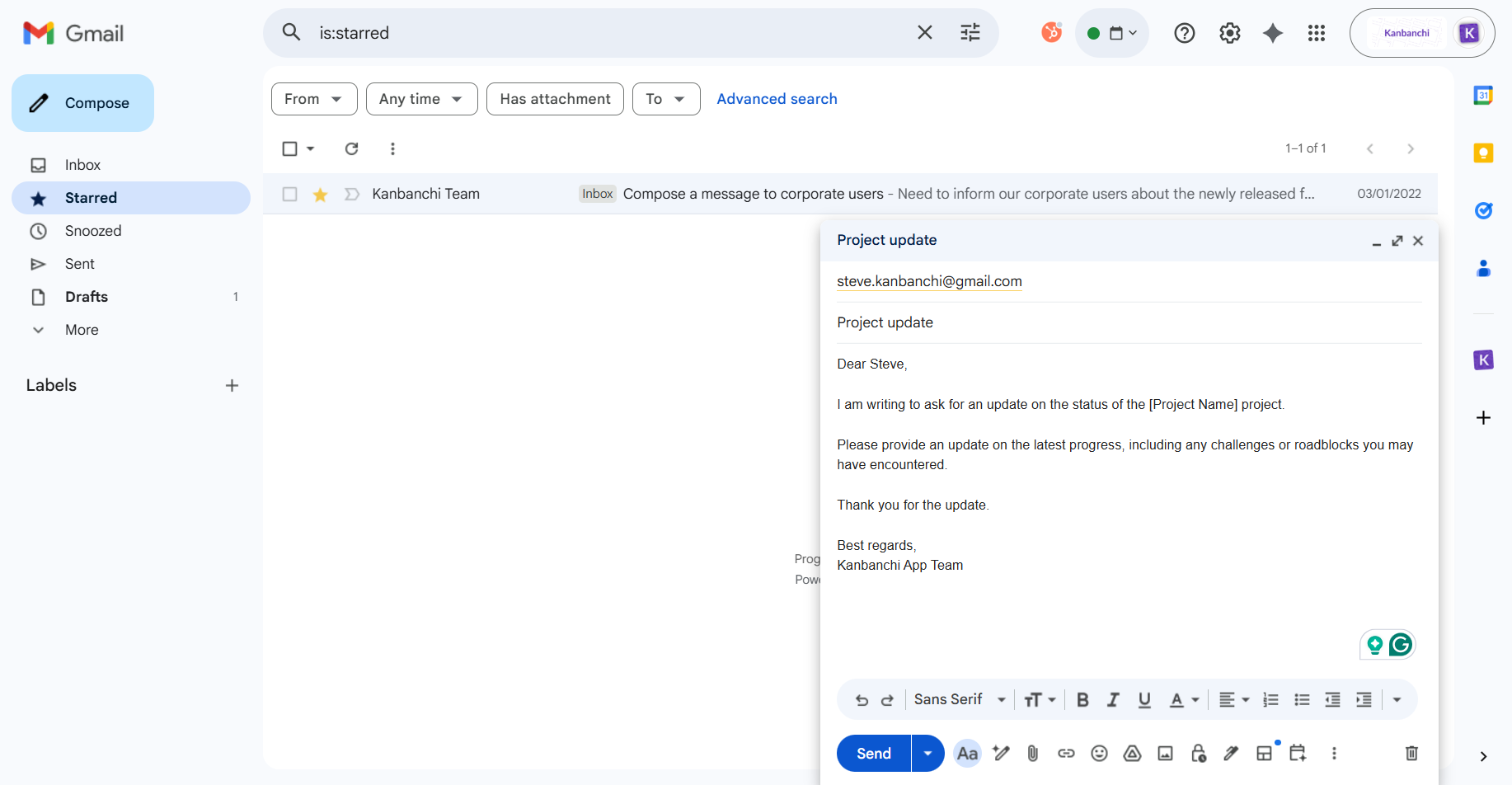
Using Gmail’s labels and tasks, teams can manage projects directly from their inbox
If you did want to try task management inside Gmail, how would it look? Here’s a bit more of an in-depth dive.
Below are four of the most common Gmail features, along with how to use them to manage tasks effectively for minimal effort.
This can be used to integrate emails that require some level of action from team members into a professional to-do list. To access Google Tasks:
Create a Task from an Email:
Now to Manage Tasks:
You’ll see a pencil icon next to the task. This is where you can add details, set a due date/time, and even add different subtasks. These tasks can be organized into different lists using the list menu at the top of the Tasks panel. When the work is done, you can mark a task as complete by clicking the circle next to it.
These are like instantly recognizable folders that let a single email belong to many different categories. It makes them easier to spot and can help make longer email chains with multiple messages less confusing.
To create a Label:
Filters can sort incoming emails based on criteria you define, such as sender, subject, and keywords.
Create a Filter:
This is the easiest way to highlight important emails for follow-up. They can be customized with different colors and icons.
To Star an Email:
These methods are helpful for small projects or personal task lists and are great for smaller businesses or sole traders handling small projects that don’t require much task management. For many SMEs, this won’t provide enough support, as we’ll see next.
What are the main core challenges when it comes to Gmail project management?
This means that Gmail alone isn’t enough for complex workflows involving multiple team members. It paves the way for a bridging solution that can work as a solid connection between Gmail and team members.
Step forward Kanbanchi! The answer to many SME’s prayers when it comes to effective project management. It’s a Google Workspace-native project management tool that’s been built to integrate with Gmail. A uniting platform that brings harmony.
How does Kanbanchi enhance Gmail workflows? By offering the following amazing features:
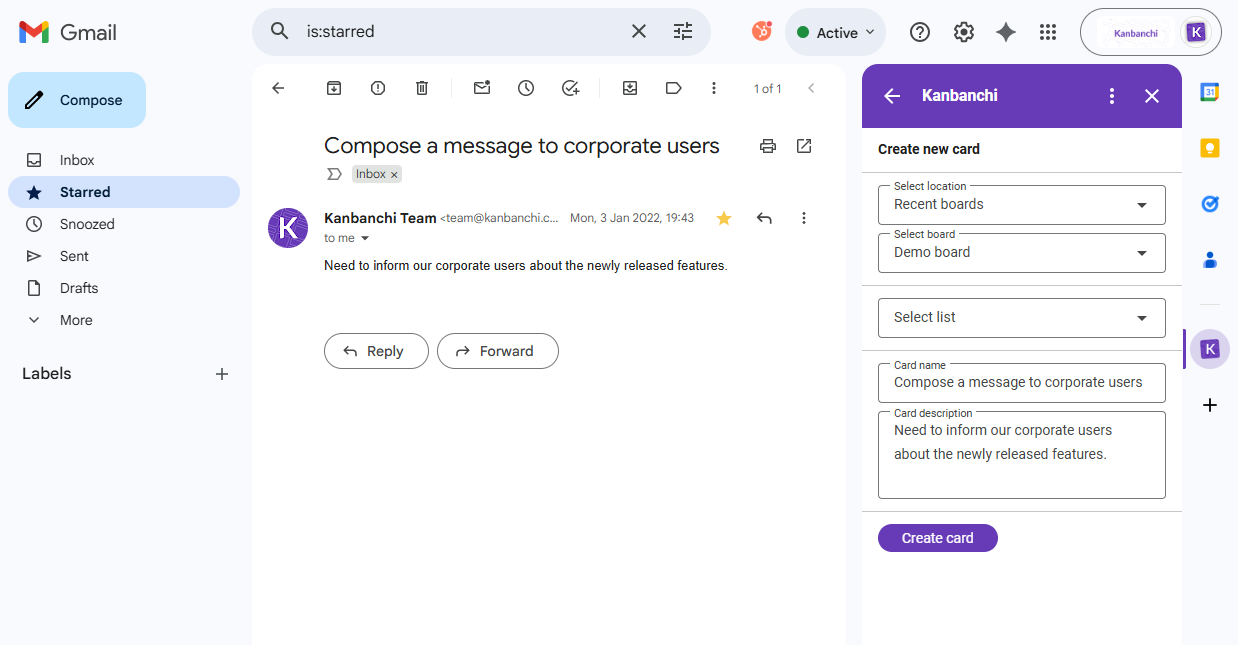
Kanbanchi integrates with Gmail and converts emails into cards on a Kanban board
If all that’s made you curious to know more, then here’s our simple guide to project management using Gmail in Kanbanchi.
Visit Google Marketplace and install the Kanbanchi for Gmail add-on.
All you need to do now is sign in with your Google account to get started with Kanbanchi. The add-on will be viewable from your Google interface.
Open any email, and you should see the Kanbanchi icon. You’ll see a panel that lets you turn it into a Kanbanchi card. The email subject will become the card title, while its body will be added as a description.
View and monitor the progress of all your projects with visual tools like Gantt charts. You can use color coding to easily categorize tasks. Use the simple click-and-drag features to reorganize everything in the order you want.
Get started and begin collaborating with your teammates. Assign them to cards, and set dues dates in sync with Google Calendar. Make use of Kanbanchi’s outstanding features, such as reports and time tracking, so you stay ahead of the game.
If you’re a team managing multiple members with lots of different priorities, it makes sense to link up your existing Gmail accounts with superior software like Kanbanchi. You’ll get the best of both worlds, and it’ll open up a better way to collaborate and stay focused. Get in touch, and let’s get the conversation started today.
Sign up with Kanbanchi today and try our software
Yes, but it’s not specifically designed for that process. It works best when it’s combined with other third-party programs such as Kanbanchi.
The beauty of Gmail is that it’s superb as a standalone email program, but it also has features that meld seamlessly with other professional tools to make it a business workhorse that makes project management easy.
You can manage tasks from emails in Gmail by converting an email to a task in Google Tasks and then managing it in the right-hand side panel.
To do this, open an email and click the ‘Add to Tasks’ button, or drag and drop the email into the Tasks panel. The new task will have a link back to the original email and can be edited to add a due date, details, or to be repeated.
Gmail, when combined with tools like Kanbanchi, creates the perfect blend of communication tools and project management software that make business processes for SMEs so much easier to complete.

In this Article:
Start using Kanbanchi now
Start your free trial